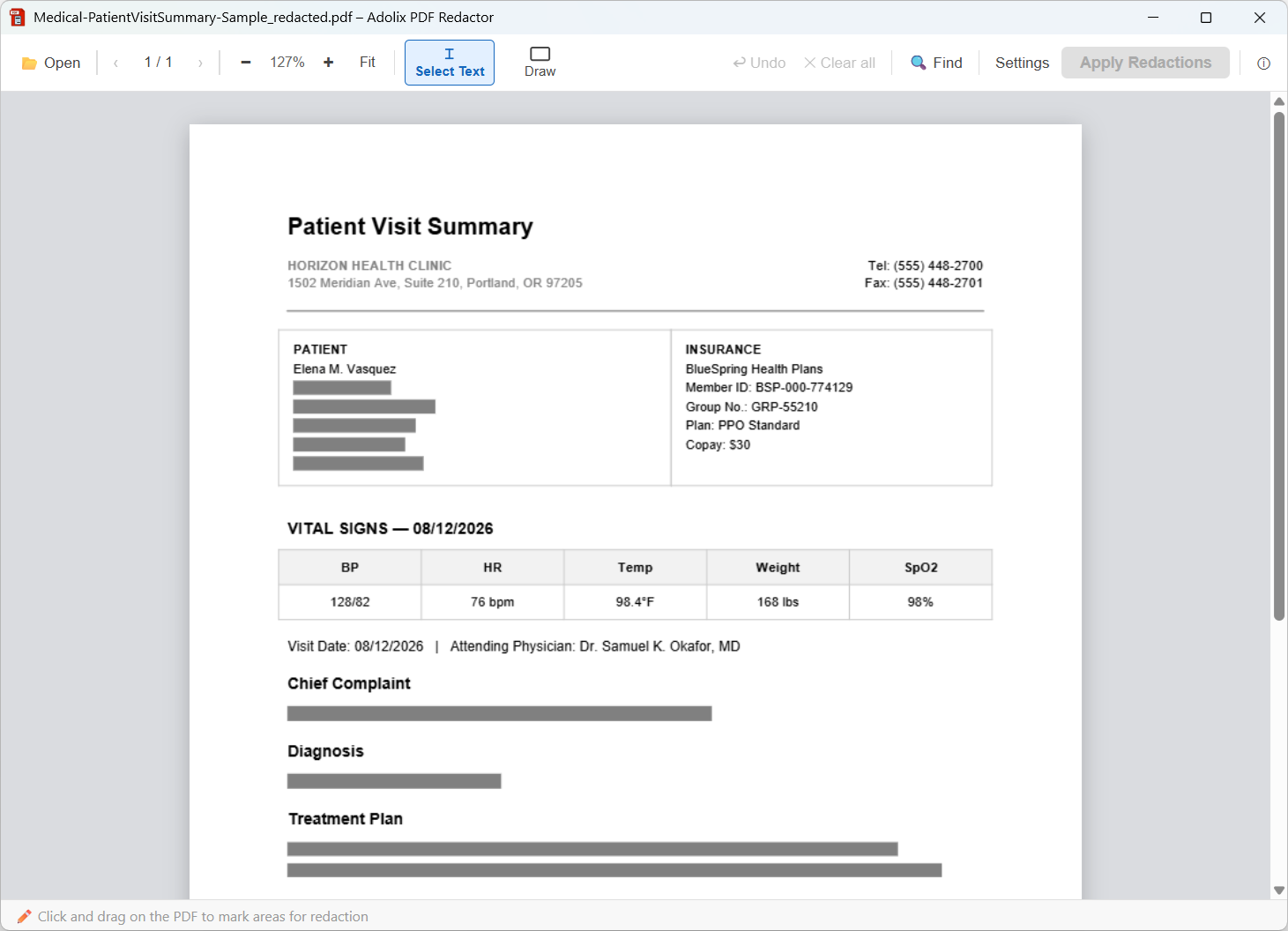
What does a properly redacted document look like? Below are four examples - a bank statement, an HR onboarding record, a legal engagement letter and a patient visit summary - each shown before and after redaction. Hover over an image to see the redacted version, or download the PDFs and inspect them yourself. All names, numbers and addresses in these documents are fictional.
The examples were redacted with Adolix PDF Redactor, a Windows application that permanently removes the selected content from the PDF and works entirely offline.
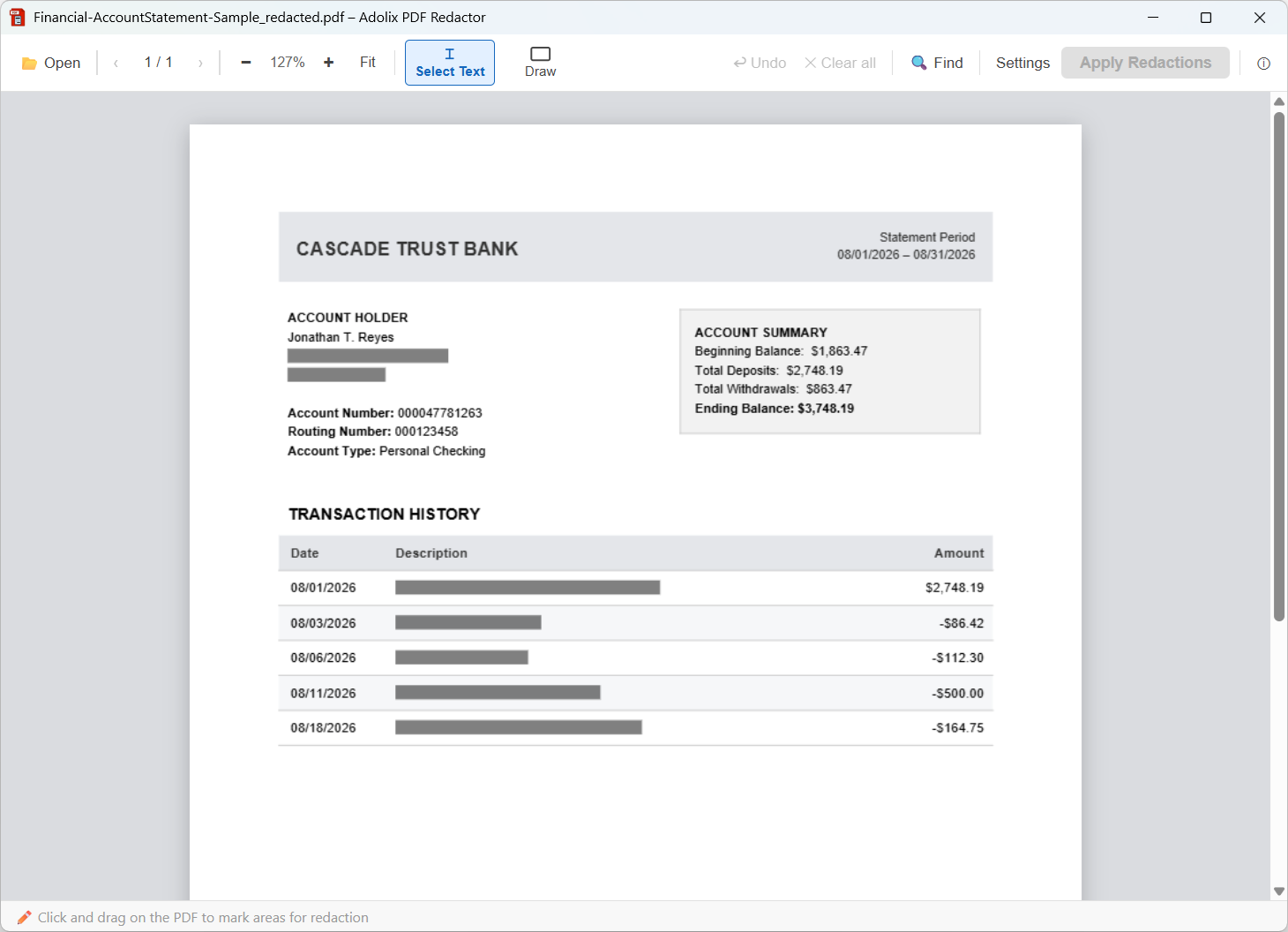
Bank Statement (hover to see it redacted)
The account holder's street address and city, and the description of every transaction (employer, merchants, payees), are removed. Dates and amounts stay readable.
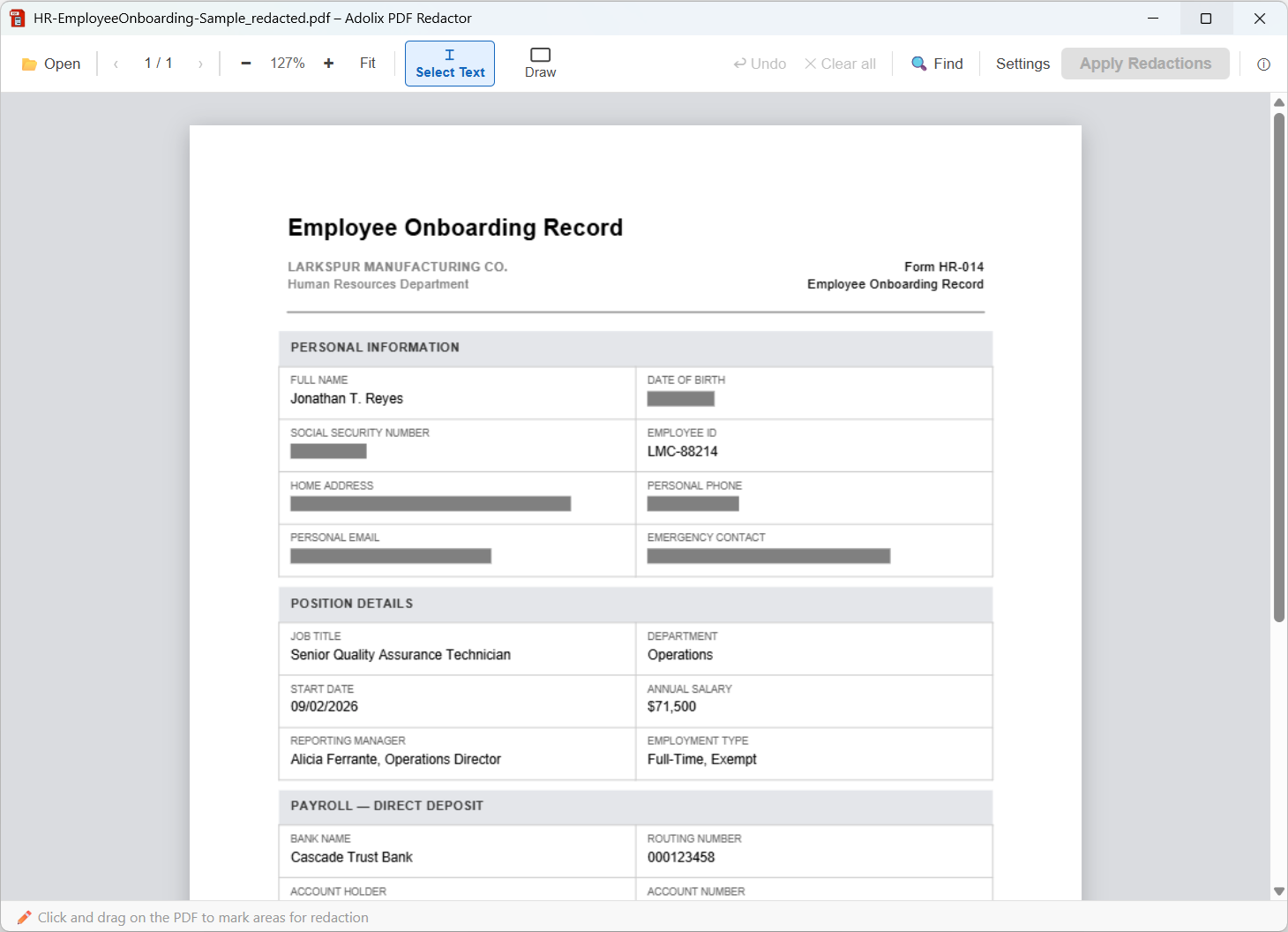
HR Onboarding Record (hover to see it redacted)
Date of birth, Social Security number, home address, personal phone and email, and the emergency contact are removed. Job title, department and start date remain.
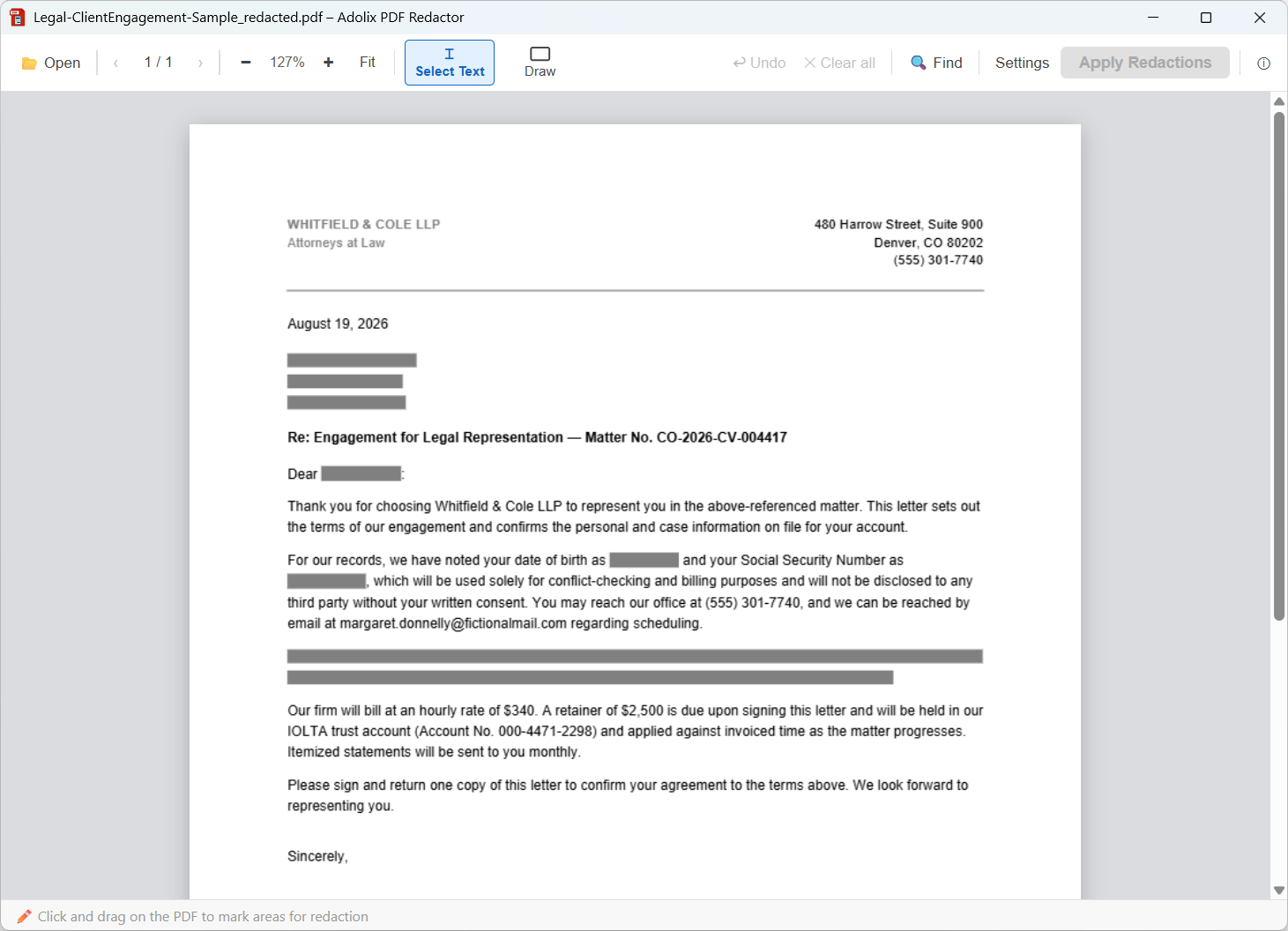
Legal Engagement Letter (hover to see it redacted)
The client's name and address, date of birth and Social Security number are removed, along with the passage that names the opposing party and describes the dispute.
A bar over the text is not what makes a document redacted. What matters is what is left in the file. Open any of the redacted PDFs above and check:
The same checks show you right away when a document was only covered, not redacted. See how to redact a PDF the right way for the full explanation. A clean result on a simple test file is a good sign, not a guarantee for every PDF: for sensitive documents, always check the saved file before you share it.
Download the original documents above and redact them with Adolix PDF Redactor. Every sample is a single page, so you can complete the whole process with the free version (PDFs up to 3 pages). Then run the same checks on your own result.
Adolix PDF Redactor permanently removes the selected text and areas from the PDF file. Your documents are processed on your own computer and are never uploaded.
Want to know more first? Read how to remove metadata from PDF files or see the Adolix PDF Redactor product page.