
Every PDF carries a small amount of hidden information alongside the visible content: the author's name, the creation and modification dates, and the software used to produce it. This is the file's metadata, and it travels with the document even after you've redacted everything visible on the page. Here's how to remove metadata from PDF files before you share them.
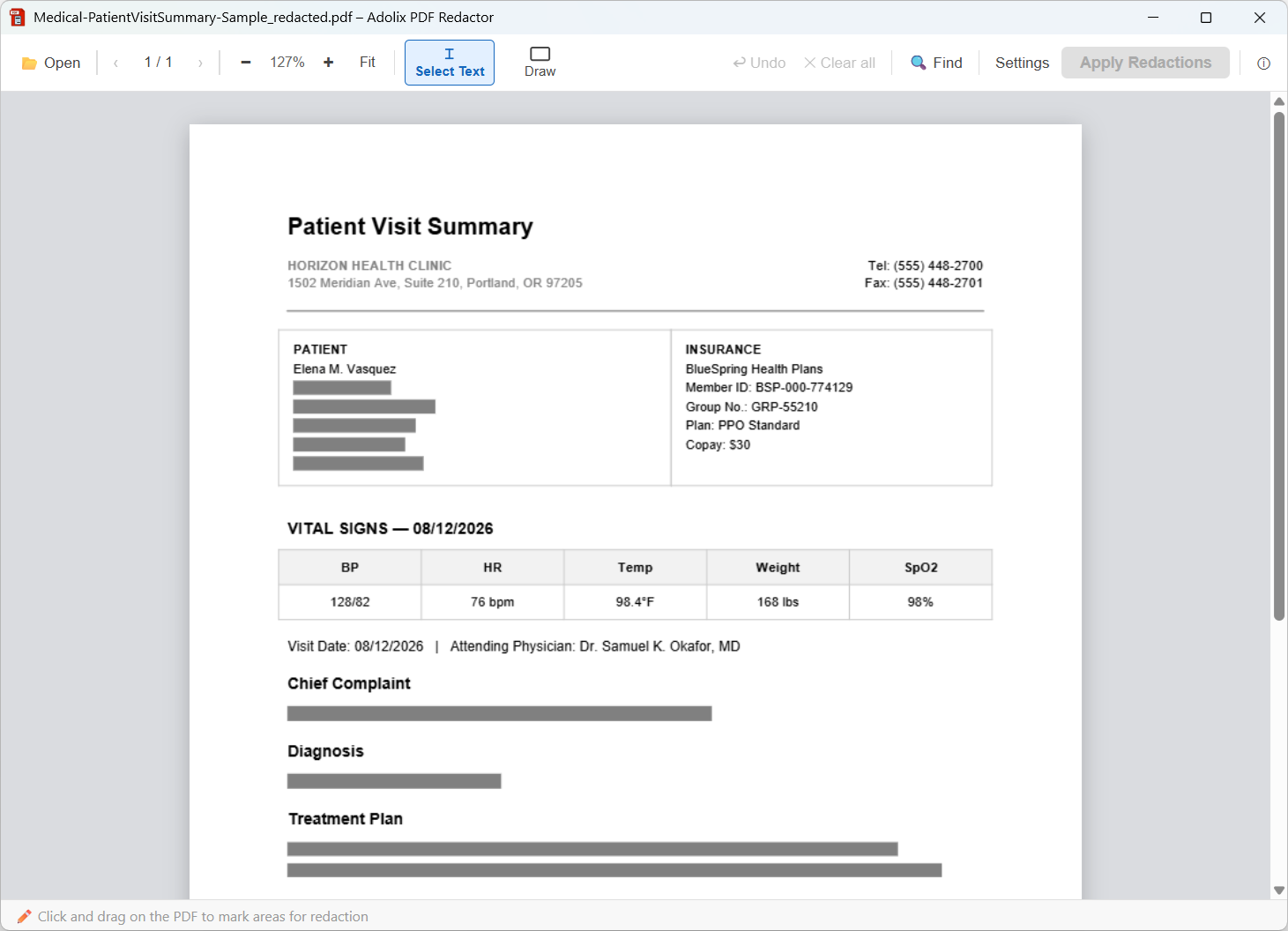
Hover to see it redacted
Wondering why you'd want to remove metadata from PDF files in the first place? Metadata doesn't show up when you open a PDF normally, but it's easy to inspect - a file's Properties panel, or a quick script, reveals the author name, the company that created it, the exact software and version used, and timestamps for creation and every edit. For a document you've just spent time redacting, that's a quiet way for information to leak back out: a real name behind an anonymous submission, an internal software version that hints at your setup, or a creation date that contradicts what the document claims. Removing it is a small step that closes that gap.
Adolix PDF Redactor strips metadata as part of the same workflow you already use to redact a document - there's no separate tool to learn.
Once you remove metadata from PDF files with Adolix PDF Redactor, it's worth confirming the fields are actually gone: right-click the saved PDF, open its Properties (or use a PDF viewer's Document Properties panel), and check the Author, Creation Date, and Application fields. After processing with Adolix PDF Redactor, these should be empty.
You can download the free version of Adolix PDF Redactor and start removing metadata from PDF files right away, at no cost.
Want to redact sensitive content too, not just metadata? Read How to Redact a PDF (the Right Way).