
Wondering how to redact a PDF the right way? If you've been drawing a black rectangle over the text in a PDF viewer, that's not it - the text is still in the file, underneath the box, exactly where it always was: selectable, searchable, and one copy-paste away from being exposed. Real redaction means permanently removing the content from the PDF itself, not covering it up.
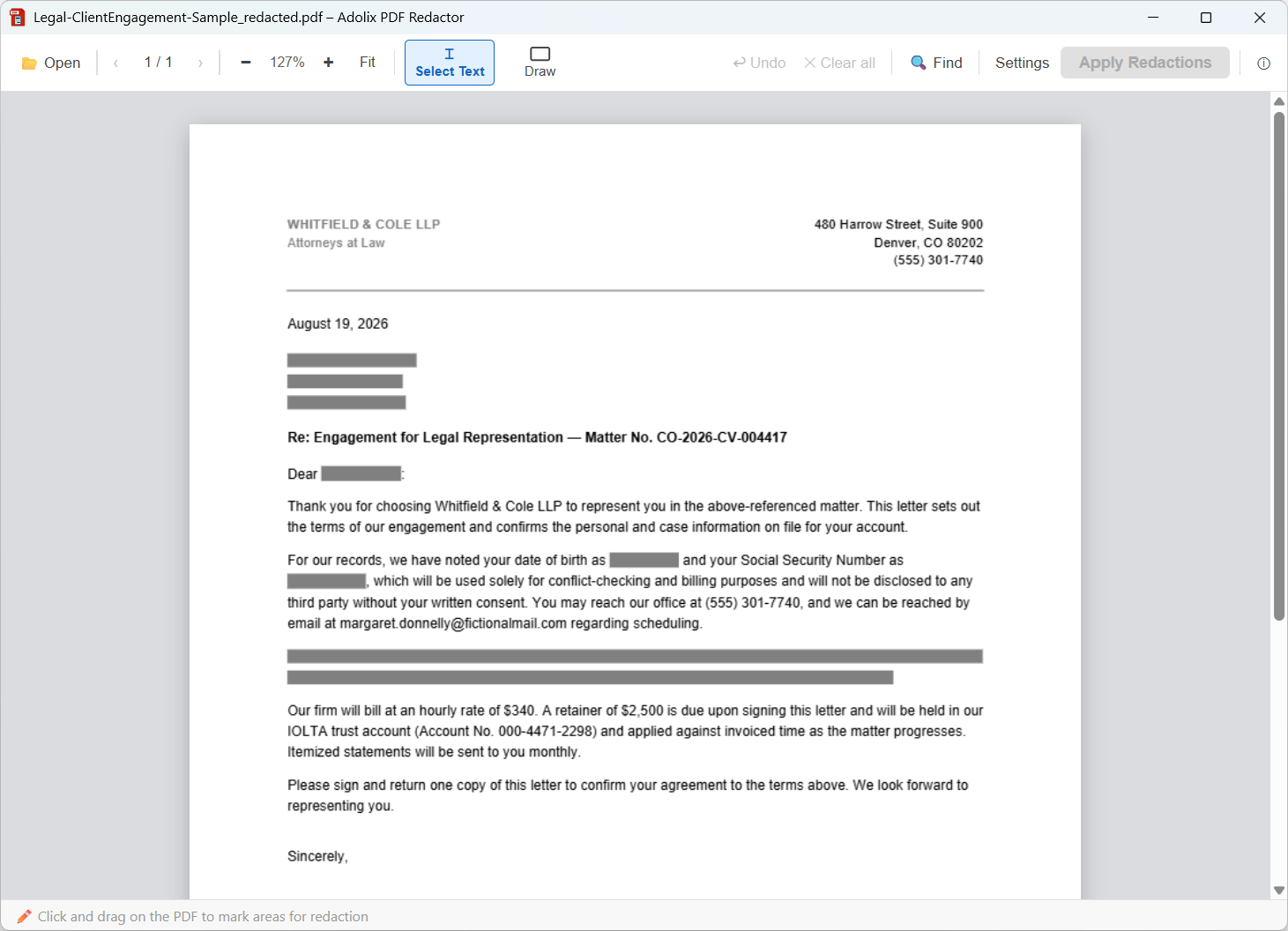
Hover to see it redacted
A PDF isn't a flat image - it's a structured file where text lives in a content stream, separate from whatever gets drawn on top of it visually. Drawing a black shape over a paragraph adds a new object to the page; it doesn't touch the text underneath. Anyone who opens the file, selects the "hidden" area, and copies it - or just extracts the file's text programmatically - gets the original content back. This exact mistake has repeatedly caused sensitive information to leak from documents that were published assuming they'd been redacted.
Actual redaction has to happen at the content-stream level: the text (or the image data, for scanned pages) is deleted from the file, not hidden behind another layer.
Here's how to redact a PDF with Adolix PDF Redactor, step by step:
Now that you know how to redact a PDF properly, put it to the test before you send the file: open it, try to select the text under the black mark, and try to copy it. If nothing selects and nothing copies, the content is gone. If you can still select or copy what should have been redacted, the file only looks redacted - the real content is still there. To see what a correct result looks like, browse these redacted document examples with free sample PDFs you can inspect yourself.
You can download the free version of Adolix PDF Redactor and start redacting PDFs with up to 3 pages right away, at no cost.
Curious how Adolix PDF Redactor compares to a full PDF editor or an online redaction tool? Read Why Choose a Dedicated Redaction Tool.