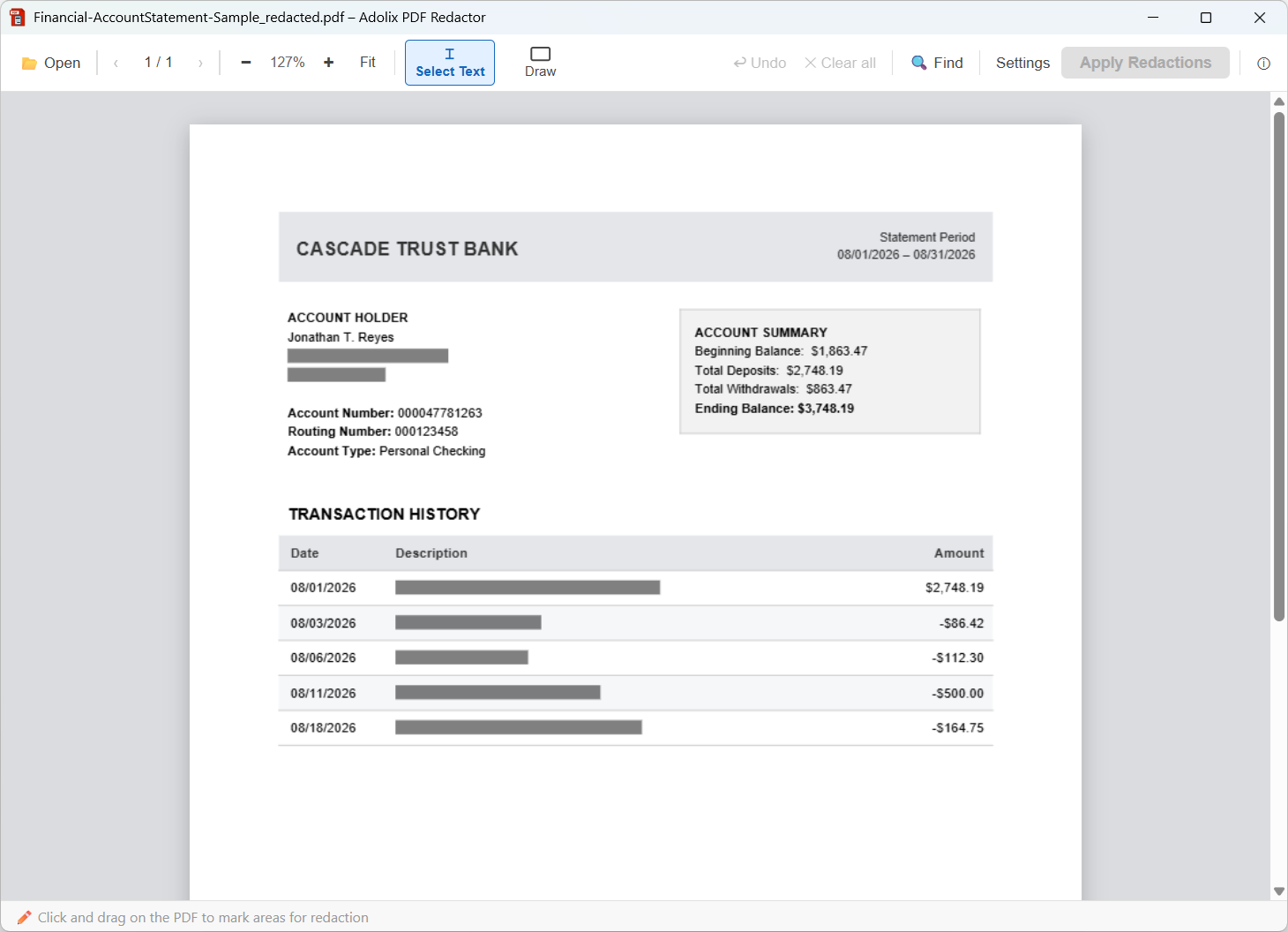
Below is a bank statement before and after redaction. Hover over the image to see the redacted version, or download both PDFs and inspect them yourself. The account holder, the bank and every transaction are fictional.
It was redacted with Adolix PDF Redactor, a Windows application that permanently removes the selected content from the PDF and works entirely offline.
Whoever asked for your statement wants to see money coming in and money going out. They almost never need to know where you shop. That is the line to redact along.
Remove:
Keep:
The redacted sample above does exactly this: the address and every transaction description are gone, while dates, amounts and balances stay readable.
The account and routing numbers are a judgement call, and the sample leaves them in. A landlord or a lender usually has to match the statement against an account you already gave them, so hiding it makes their job harder for no gain. If the statement is going somewhere less controlled than that, redact those two as well.
Some people do the opposite: they leave the merchant names and black out the amounts. On a statement with a running balance, that does not work. Two consecutive balances give you the transaction between them by subtraction. Black out a payment and leave the balance going from $1,310.00 to $1,070.00, and the number is back: $240.00.
This is not a redaction failure - the amount really is gone from the file. It is an arithmetic one, and no redaction tool warns you about it. If the amounts are what you need to hide, remove the balance column as well, or share only the pages that do not carry it.
Then check the result: select under a black bar and paste it into a text editor. Nothing should come out. The full explanation is in how to redact a PDF the right way.
Adolix PDF Redactor permanently removes the selected text and areas from the PDF file. Your documents are processed on your own computer and are never uploaded. A statement is usually one or two pages, so the free version is enough for most of them.
More examples of the same kind: redacted document examples for HR, legal and medical files. For account statements and reports at work, see PDF redaction for financial services.